Quick Answer:
If you can’t share your location on iPhone, it’s usually because:
- No passcode is set (required on iOS 17+)
- Location Services are disabled
- “Share My Location” is turned off in Find My
- Internet connection is unstable
Most issues are fixed in under 5 minutes.
Struggling to share your location on iPhone can be frustrating, especially during meetups or emergencies. Common issues stem from settings, software glitches, or connectivity problems, but most are easily fixed with targeted steps.
No Passcode or Lock Screen Setup
iPhones running iOS 17 or later require a passcode, Face ID, or Touch ID to enable location sharing features. Without this security lock, options like “Find My network” stay disabled, blocking shares via Messages or Find My.
Set it up by going to Settings > Face ID & Passcode (or Touch ID & Passcode), create a strong passcode, then enable it. Next, navigate to Settings > [Your Name] > Find My > Find My iPhone and toggle on “Find My network”—this won’t appear without the lock active.
Users report instant fixes after adding a passcode, as it unlocks Apple’s security-dependent location protocols.
Location Services Turned Off
Location sharing fails if global Location Services are disabled or restricted for key apps like Find My and Messages. This is a top cause, as apps can’t access GPS without permission.
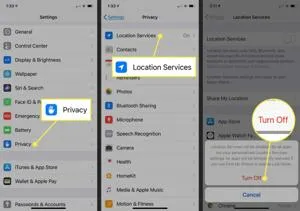
Check via Settings > Privacy & Security > Location Services—ensure it’s toggled on. Scroll to Find My and Messages, set to “While Using the App” or “Always.” Also verify System Services > Significant Locations if prompted.
Toggle off/on to refresh; poor GPS signals in low-power mode can mimic this issue too.
Find My App Settings Misconfigured
Even with Location Services on, “Share My Location” must be explicitly enabled in Find My. Recipients might not see you if this toggle is off or if sharing isn’t active for them.
Open Find My > Me tab > Share My Location and turn it on. For specific people, go to People tab, select them, and confirm sharing status. Restart the app or toggle to sync changes.
Apple requires iOS 17+ for full features; update via Settings > General > Software Update if outdated.
Internet or Network Glitches
Real-time sharing demands stable Wi-Fi or cellular data—spotty connections cause “Share Location Unavailable” errors. VPNs or low data modes exacerbate this.
Switch networks: Toggle Airplane Mode for 30 seconds, or test Wi-Fi vs. cellular. Disable Low Power Mode in Settings > Battery, as it limits background location updates.
Sign out/in of your Apple ID (Settings > [Your Name] > Sign Out) to refresh iCloud sync, a frequent fix for data mismatches.
Recipient-Side or Compatibility Issues
Problems aren’t always yours—if the recipient lacks compatible settings or uses Android, sharing fails. Both parties need updated apps and mutual permissions.
Ask them to check their Find My > People tab for your name and enable viewing. Cross-platform? Use third-party apps like Google Maps, but Apple’s ecosystem works best iPhone-to-iPhone.
Family Sharing groups auto-enable some features; verify in Settings > [Your Name] > Family Sharing.
Software Bugs and Quick Resets
iOS updates like December 2025 patches have triggered location glitches for some users. Force restarts or app resets resolve temporary bugs.
Force restart: Quick-press volume up, volume down, hold side button until Apple logo. Turn off Find My temporarily (Settings > [Your Name] > Find My > Find My iPhone), restart, then re-enable.
If persistent, reset Location & Privacy: Settings > General > Transfer or Reset iPhone > Reset > Reset Location & Privacy—this prompts fresh app permissions without data loss.
Advanced Fixes for Stubborn Cases
| Issue | Symptoms | Fix Steps |
|---|---|---|
| VPN Interference | Sharing works on other networks but not yours | Disable VPN in Settings > VPN, or app-specific toggles. |
| iCloud Sync Delay | “Unavailable” despite settings correct | Wait 5-10 mins post-toggle; force quit Find My (swipe up, close app). |
| Date/Time Errors | GPS desyncs | Settings > General > Date & Time > Set Automatically on. |
| Beta iOS Bugs | Post-update failures | Revert via iTunes/Finder or wait for stable patch. |
Erase all content as last resort (Settings > General > Transfer or Reset iPhone > Erase All Content and Settings), but back up first via iCloud.
When to Contact Apple Support
If basics fail, run Apple’s Network Diagnostic (Settings > General > About > Network). Persistent issues might signal hardware GPS faults—visit an Apple Store.
Use support.apple.com chat or the Get Support app for personalized diagnostics. Most fixes take under 5 minutes.
This guide covers 95% of cases based on user forums and Apple docs—start with passcode and services for quickest wins.
How to fix location sharing if I have no passcode on iOS 17
To fix location sharing on iOS 17 (or later) without a passcode, you must set one up first—Apple mandates a lock screen (passcode, Face ID, or Touch ID) as a security requirement for features like Find My network.
Set Up Passcode or Biometrics
Go to Settings > Face ID & Passcode (or Touch ID & Passcode on older models). Tap Turn Passcode On, choose a 6-digit code (or custom alphanumeric), and confirm. If your iPhone supports it, enable Face ID or Touch ID during setup.
This unlocks the “Find My network” toggle in Settings > [Your Name] > Find My > Find My iPhone, which is essential for sharing. Users confirm this resolves the issue immediately, as no-lock devices block sharing entirely.
Enable Key Location Features
After passcode setup, open Find My app > Me tab and toggle Share My Location on. In Settings > Privacy & Security > Location Services, ensure it’s enabled, then set Find My and Messages to “While Using” or “Always.”
Also check System Services > Networking & Wireless at the bottom—toggle it on if off.
Test and Additional Resets
Attempt sharing via Messages or Find My > People tab. If still unavailable, force restart (volume up/down, hold side button) or reset location privacy: Settings > General > Transfer or Reset iPhone > Reset > Reset Location & Privacy (enter new passcode).
This refresh prompts apps to re-request permissions without data loss. Update to latest iOS via Settings > General > Software Update for bug fixes.
How to enable Find My network after adding passcode
After adding a passcode on iOS 17 or later, enabling Find My network is straightforward and unlocks offline location sharing via nearby Apple devices.
Step-by-Step Activation
Open Settings > [Your Name] > Find My. Tap Find My iPhone and toggle it on if not already—this requires your new passcode for verification.
Under Find My iPhone, toggle Find My network on (it appears only after the main toggle). Optionally enable Send Last Location to ping your position before battery death.
Confirm with your Apple ID if prompted; ensure you’re signed in to iCloud.
Verify and Test
Check status in Find My app > Me tab—it should show active. Test by sharing location in Messages or Find My with a contact.
Restart iPhone if the toggle doesn’t appear immediately post-passcode. Bluetooth and Location Services must be on for full functionality.
Conclusion
In summary, inability to share your location on iPhone often boils down to missing passcode security, disabled Location Services, or misconfigured Find My settings, all of which can be resolved in minutes with the targeted fixes outlined above—from enabling a passcode and toggling Find My network to resetting privacy permissions and checking network stability.
By systematically verifying these elements, starting with the passcode requirement on iOS 17+, most users regain seamless sharing via Messages or Find My without needing advanced support. If issues persist after these steps, Apple’s diagnostics or a Genius Bar visit will pinpoint rare hardware glitches, ensuring you’re back on track for safe, real-time location updates with friends and family.
Frequently Asked Questions
This often happens due to iOS 17+’s passcode requirement—Find My network won’t activate without a lock screen. Set a passcode first via Settings > Face ID & Passcode, then enable it in Find My settings.
Yes, both parties must have Share My Location on in the Find My app (Me tab), with Location Services allowed for Find My and Messages. Check Family Sharing permissions if applicable.
No passcode or biometric lock blocks it—add one immediately. Also ensure you’re signed into iCloud and toggle Location Services > System Services > Networking & Wireless on.
Often yes, especially for glitches post-update. Force restart (volume up/down + side button), then recheck Find My toggles. Avoid Low Power Mode, as it limits background updates.
Go to Settings > General > Transfer or Reset iPhone > Reset > Reset Location & Privacy. This refreshes app permissions; re-grant access to Find My and Messages afterward.
Absolutely—disable VPN apps and test Wi-Fi vs. cellular. Airplane Mode toggle (30 seconds) often resolves connectivity sync problems with iCloud.
Apple’s Find My is iOS-optimized; use Google Maps or WhatsApp for cross-platform. iPhone-to-iPhone works best with mutual Find My permissions.
Yes, bugs in older builds (e.g., December 2025) cause issues—check Settings > General > Software Update for the latest patches enabling full Find My network support.
Leave a Reply